Office copiers sit at the center of daily work — printing, scanning, copying, repeat. For most teams, the machine feels simple and predictable. You press a button, paper comes out, done.
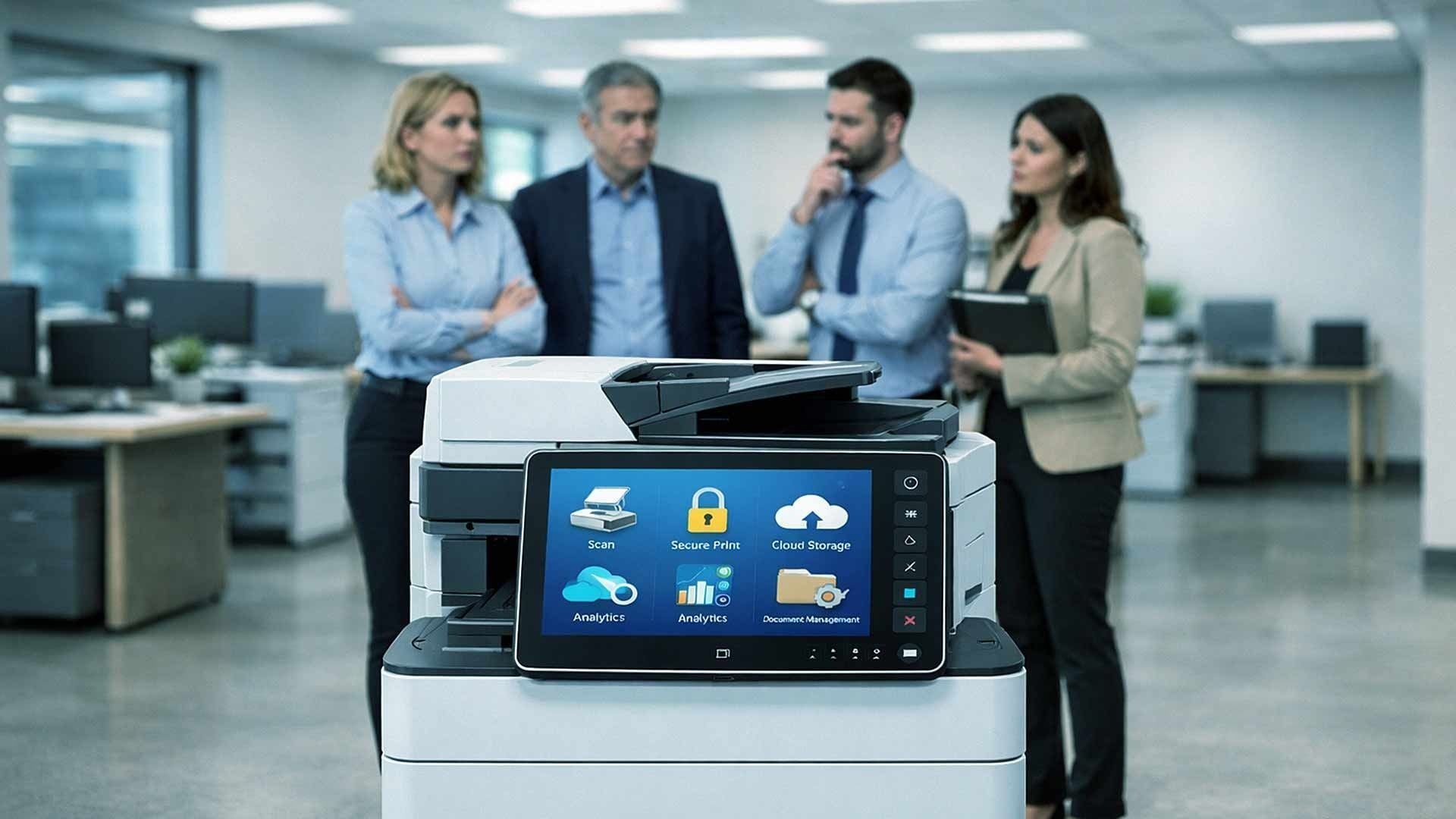
But behind that touchscreen lives a long list of features built into most modern multifunction copiers. Many of them stay unused for years. Businesses pay for them through lease costs, service agreements, and software licenses without ever realizing it.
This article breaks down the copier features most businesses rarely activate, why adoption stays low, and when these tools actually make sense for your team. The goal is straightforward: help you decide whether your current copier setup is working as hard as you are.
Why So Many Copier Features Go Unused
Copier manufacturers design machines to serve dozens of industries at once. Law firms, healthcare groups, schools, construction companies, and corporate offices often share the same hardware platform. That means each machine ships with far more capability than any single business typically needs — or knows how to use.
Most businesses never receive clear training beyond basic functions after installation. Staff turnover adds another layer of knowledge loss over time. Teams stick with what feels familiar, and workflows get built around old habits rather than current tools.
According to a TechRepublic resource on office device allocation, in some environments as many as 40 employees now share a single device — and printers are physically farther away than they used to be. That distance and crowding creates friction. People default to the fastest, simplest option available and never explore what else the machine can do.
Common reasons advanced copier features go unused include:
- Limited onboarding or training after installation
- Fear of changing a process that already works
- Lack of awareness that the features even exist
- Workflows built around old habits
- IT teams stretched thin and focused elsewhere
Here's the honest reality: unused features don't always equal wasted money. Some exist for specific industries or situations that may not apply to your business. Others offer genuine value when matched with the right workflow. The question worth asking is whether you've even had the chance to evaluate them.
Advanced Scan Workflows Built Into Your Copier
Scan to email sees daily use in almost every office. Beyond that, most scan tools sit untouched.
Modern multifunction copiers support advanced scanning options designed to reduce manual work and eliminate the "scan, email to yourself, download, rename, save" cycle that eats up time every single day.
These often include:
- Scan to network folders with automated routing rules
- Scan to cloud platforms like SharePoint, OneDrive, or Google Drive
- Automated file naming using date, document type, or user metadata
- Optical character recognition (OCR) for fully searchable PDFs
Why businesses skip these features
Setting up scan workflows requires upfront planning. Folder permissions, naming conventions, and user access all create friction during setup. Many teams default to emailing scans to themselves because it's the path of least resistance.
When scan workflows make sense
Organizations that handle repeat document types benefit most. Invoices, HR forms, contracts, patient intake forms, and onboarding paperwork are all strong candidates. When you're scanning the same type of document dozens of times per week, automated routing saves real time and reduces the risk of misfiled records.
If your team is manually sorting scanned documents after the fact, there's a good chance a scan workflow could handle that step for you automatically.
User Authentication and Secure Print Release
Many copiers include badge readers or PIN login options right out of the box. These tools control who can access the device and ensure sensitive documents don't sit in an output tray waiting for the wrong person to walk by.
Despite real security risks, many offices never activate these features.
Common secure print options include:
- Badge swipe release — document prints only when the user is standing at the machine
- PIN code authentication — requires entry before a job releases
- User-level permissions — limits certain functions to authorized staff
- Print job hold queues — jobs wait in the cloud or on the device until confirmed
Why secure print stays disabled
Teams worry about slowing people down. Some leadership assumes security concerns only apply to large enterprises or government organizations. The reality is different. Printed documents left unattended at a shared output tray are a straightforward data exposure risk — whether your team is 10 people or 10,000.
Healthcare, legal, and financial services teams face elevated risk and often have compliance requirements that specifically address document security.
When secure print matters
Any business handling personal data, employee records, client financials, or protected health information benefits from print security. In many cases, compliance frameworks like HIPAA expect these types of safeguards to be in place. Activating a feature that's already built into your copier is often the lowest-effort way to close that gap.
Built-In Document Management Tools
Copiers often ship with lightweight document management software. These tools handle indexing, storage, and basic retrieval for scanned files. Many businesses never install or activate them.
Common document management features included in modern copiers include:
- Automatic indexing by keyword, date, or document type
- Searchable document libraries linked to your scan workflow
- Permission-based access so only authorized users can retrieve certain files
- Basic version tracking for frequently updated documents

Why document management features go unused
Dedicated document management platforms exist — and businesses often assume copier tools lack the depth to be worth using. Some worry about creating system overlap with existing software. Both concerns are reasonable.
That said, for small teams without a formal document management system, built-in copier tools offer a practical starting point. They support basic organization without additional software spend or complex implementation.
When copier document management helps
Small offices moving away from paper-based processes benefit most. Teams with limited IT resources also gain real value from lightweight tools that don't require a separate vendor, contract, or support relationship to maintain.
Finishing and Output Options That Most Teams Ignore
This category often gets overlooked entirely. Modern copiers include finishing options that can change how your documents look and how much time your team spends assembling them.
These include:
- Stapling and hole punching — automatic, at the machine
- Booklet creation — fold and staple multipage documents into booklet format
- Offset stacking — separate print jobs in the output tray automatically
- Banner and oversized printing — for presentations or signage, depending on the model
If your team is manually stapling 50-page reports or assembling training packets by hand, there's a real efficiency gain sitting unused in the finishing tray settings.
Energy and Usage Reporting Tools
Many businesses have no idea how much their copier actually costs to operate day to day. Modern multifunction devices include built-in usage reporting that tracks:
- Pages printed per user or department
- Color vs. black-and-white ratios
- Device uptime and error history
- Toner and supply consumption trends
This data matters. Color printing typically costs significantly more per page than black-and-white output. When departments print in color by default — on documents that don't require it — those costs add up fast. Usage reporting helps you identify where the spend is going and where simple policy changes could reduce it.
Energy management features also tend to go unconfigured. Sleep mode schedules, auto-shutoff settings, and eco-mode printing defaults can meaningfully reduce power consumption over the course of a year without any noticeable impact on day-to-day use.
Mobile and Remote Printing Features
The way people work has shifted. Teams print from laptops, tablets, and phones. They work from conference rooms, client sites, and home offices. Most modern copiers support mobile printing out of the box, but many businesses haven't activated it.
Options commonly available include:
- AirPrint and Mopria for iOS and Android devices
- Email-to-print — send a document to an address and it prints at the office
- QR code release — scan a code at the machine to release a held print job
- Web-based print portals for remote submission
If your team is transferring files to a shared drive or walking documents to a connected computer just to print them, there's a faster path already built into your device.
FAQ: Office Copier Features Most Businesses Overlook
1. How do I know which features my current copier has?
Start with the admin panel on the device itself — most modern copiers display available features and current settings through a touchscreen menu. Your service provider or account manager should also be able to pull a full feature list for your specific model. If you're an AIS client, your dedicated account manager can walk through your current device configuration with you.
2. Will activating these features slow down my copier or cause problems?
In most cases, no. Features like secure print, scan workflows, and usage reporting are designed to run in the background without affecting print speed or reliability. The bigger risk is setting something up incorrectly, which is why having a trained technician or account manager assist with initial configuration is worth the time.
3. Do I need additional software to use advanced scan workflows?
Not always. Many copiers handle OCR, cloud destination routing, and automated file naming natively — no third-party software required. For more complex integrations with platforms like SharePoint or a document management system, some additional configuration or licensing may apply depending on your model and vendor.
4. Is secure print worth the extra steps for a small office?
It depends on what you're printing. If your team regularly prints payroll documents, client contracts, HR records, or any personally identifiable information, secure print is worth activating. The extra step — swiping a badge or entering a PIN — takes seconds and eliminates the risk of sensitive documents sitting unattended in an output tray.
5. Can I get usage reports broken down by department or individual user?
Yes, most enterprise-grade multifunction copiers support user-level tracking when authentication is enabled. This lets you see exactly how much each department or employee is printing, what ratio is color vs. black-and-white, and where costs are concentrated. That information is often eye-opening for businesses that assume printing costs are fixed and uncontrollable.

6. What's the most commonly overlooked copier feature?
Based on what we see across our client base at AIS, automated scan workflows and secure print release are the two features that offer the most value and see the least adoption. Both are frequently included in standard copier configurations and rarely require additional licensing to activate.
7. How often should I revisit my copier's features and settings?
At minimum, once per year — ideally when your service agreement comes up for renewal or when your team goes through any significant workflow changes. Copier firmware updates sometimes add new capabilities to existing devices, so a periodic review often reveals options that weren't available when the machine was first installed.
The Honest Bottom Line
Your office copier is probably doing less than it could. That's not a criticism — it's the reality for most businesses, and it makes complete sense given how little training most teams receive beyond day-one basics.
The good news is that many of the features described here are already included in what you're paying for. Activating them doesn't require a new device, a new contract, or a significant IT project. It often just requires someone to sit down with your current setup and ask the right questions.
If you're not sure what your copier is actually capable of — or whether your current device is the right fit for how your team works today — that's exactly the kind of conversation worth having.
Schedule a Free Consultation with an AIS account manager and we'll walk through your current copier setup, identify features you may not be using, and help you decide whether any changes make sense for your business.
Or if you'd rather just start a conversation, contact AIS today. Our team serves businesses across Las Vegas, Southern California, and surrounding regions — with local support, dedicated account managers, and a 96% client satisfaction score that reflects how seriously we take getting this stuff right.
Topics:
