

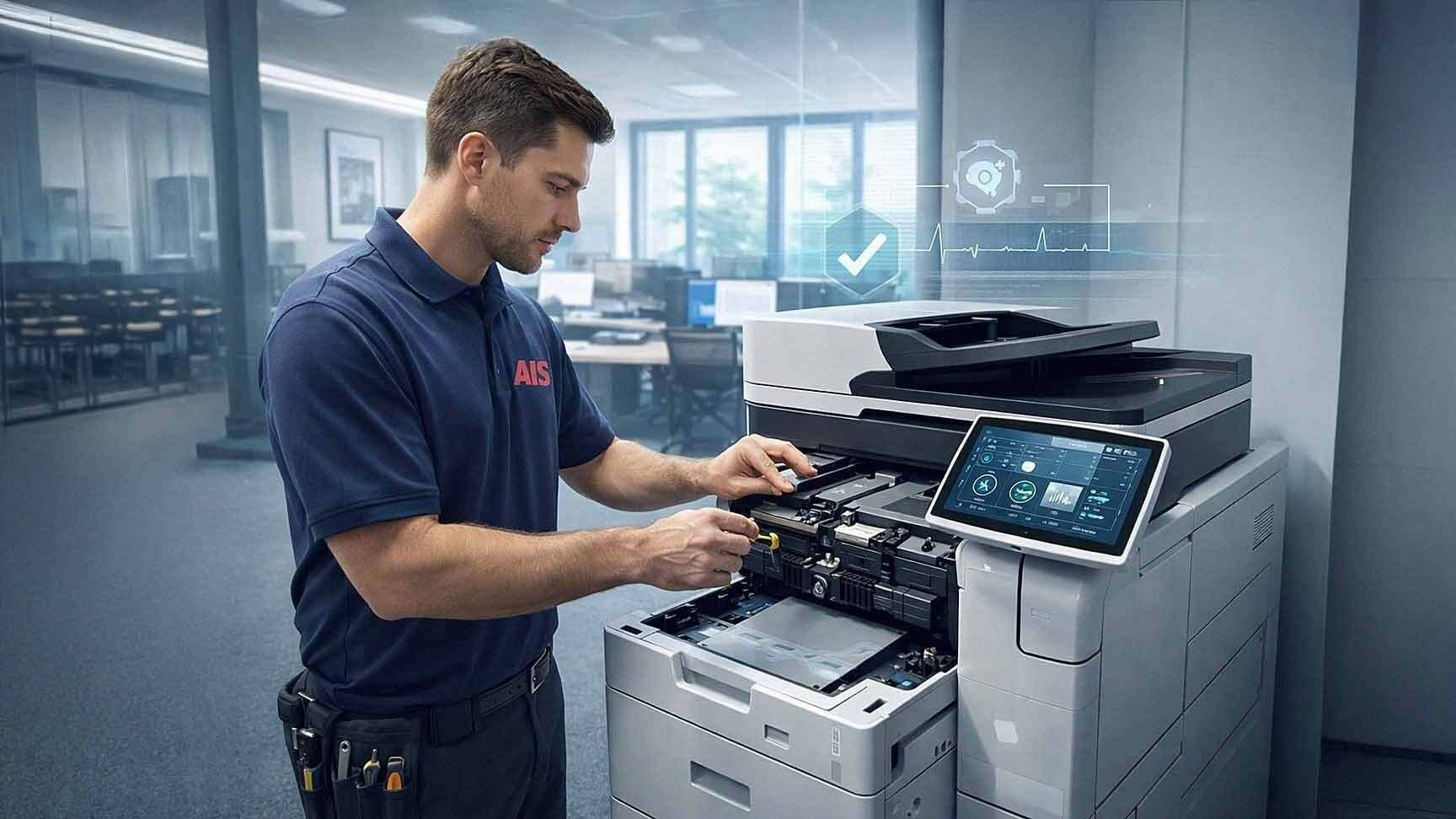
Office printers are easy to ignore — right up until something goes wrong.
One day, the paper jams three times before 9 a.m. The next, streaks appear on every page leaving the tray. Toner smears. Error codes flash. Productivity stalls and the frustration starts to build. Sound familiar?
Here's the thing: most of these problems are preventable. Preventative maintenance for office printers reduces downtime, extends device lifespan, and lowers long-term repair costs. Businesses that treat their printers as critical office infrastructure — not just office furniture — experience fewer disruptions and far more predictable service expenses.
This guide gives you a practical, updated look at the habits and routines that keep your printers running reliably in 2026.
Why Preventative Printer Maintenance Actually Matters
Let's be honest. Most offices don't think about printer maintenance until something breaks. That reactive approach is exactly what drives up costs.
Paper jams alone are among the most common problems across all printer makes and models, according to TechRepublic — and the majority of them stem from issues that are entirely preventable: worn rollers, moisture-damaged paper, overloaded devices, and inconsistent cleaning routines.
Beyond jams, deferred maintenance leads to:
- Higher repair bills from problems that compound over time
- Shortened device lifespan, meaning more frequent replacement cycles
- Unexpected downtime that disrupts employees and clients alike
- Security vulnerabilities from outdated firmware on network-connected devices
Preventative maintenance isn't about being overly cautious. It's about protecting an investment that your business depends on every single day.
Understand What Causes Printer Wear and Failure
Before you can prevent problems, you need to know what causes them. The most frequent culprits behind printer issues include:
- Dust accumulation inside and around the device
- Worn paper feed rollers
- Improperly stored paper stock
- Low-quality or off-brand supplies
- Missed firmware updates
- Consistently exceeding the device's recommended monthly duty cycle
Many of these causes develop slowly and quietly. That's why a proactive maintenance routine — rather than waiting for visible symptoms — is the smarter approach for any business relying on regular print output.

Tip 1: Keep Your Printers Clean Inside and Out
Dust is one of the biggest enemies of office printers. It's invisible until it causes a problem, and by then, it's often already done damage.
Dust buildup directly impacts:
- Paper feed rollers, reducing grip and causing misfeeds
- Internal sensors, leading to false error codes
- Imaging components, producing streaks and print quality defects
- Ventilation systems, causing overheating over time
A practical cleaning routine should include:
- Wiping down exterior surfaces weekly with a lint-free cloth
- Cleaning paper trays and input guides regularly
- Removing visible dust from accessible compartments
- Checking that ventilation openings are clear of obstruction
For internal cleaning, follow the manufacturer's guidelines carefully. Deeper cleaning — particularly around imaging drums, fusers, and feed assemblies — is best handled by a certified technician. Attempting it without proper training can cause more harm than good.
Clean printers simply work better. It's one of the lowest-effort, highest-return maintenance habits you can build.
Tip 2: Store Paper Properly
Paper quality directly affects printer performance, and improper storage is a surprisingly common root cause of jams and print defects.
When paper absorbs moisture, it:
- Warps and wrinkles, leading to frequent jams
- Creates resistance in the feed path, straining rollers
- Produces smeared or uneven print output
- Shortens the life of fuser components
To keep your paper in optimal condition:
- Store it in a dry, climate-controlled environment
- Leave it in its original sealed packaging until ready to load
- Keep it away from heat sources like windows, HVAC vents, or direct sunlight
- Store reams flat, never standing on edge
This is especially worth noting for offices in regions with temperature swings or humidity — including parts of Southern California and the Las Vegas area, where dry heat can cause its own paper issues. Even arid environments affect paper over time.
Tip 3: Replace Consumables on Schedule
Consumables — toner cartridges, drum units, fusers, and maintenance kits — have a finite lifespan. Waiting until something fails completely before replacing it puts your entire print operation at risk.
Running a toner cartridge well past its rated page yield, for example, increases the likelihood of leakage, image defects, and contamination of other internal components. A drum that's overdue for replacement drags down image quality and can damage the fuser.
Most modern copiers and printers send alerts when consumables are approaching end of life. Act on those alerts promptly. Don't dismiss them and hope for a few more days of output.
Recommended replacement schedule checkpoints:
- Toner cartridges — replace at or before the rated page yield
- Drum units — follow manufacturer cycles, typically every 20,000–50,000 pages depending on the model
- Maintenance kits — scheduled replacement based on page counts, not visible wear
- Fuser assemblies — critical for heat-transfer print quality; replace proactively
If you're not sure where your devices stand on these cycles, a managed print services provider can track all of this for you automatically.
Tip 4: Monitor Monthly Print Volume
Every printer and copier carries a recommended monthly duty cycle — the manufacturer's rated volume that the device is designed to handle reliably over time.
Consistently printing above that threshold accelerates:
- Roller and feed mechanism wear
- Overheating events
- Increased maintenance frequency
- Early end-of-life failure
Print management software gives you visibility into actual usage across all devices. If one printer is consistently carrying the majority of your team's print volume, you have a few options:
- Redistribute print jobs across underused devices
- Add a second device to share the load
- Upgrade to a higher-capacity model rated for your actual volume
This is what's sometimes called "right-sizing" your print fleet. It's a core part of preventative maintenance that's easy to overlook — but it has a direct impact on how long your equipment lasts and how often it needs service.
Tip 5: Update Firmware Regularly
Printers on your office network are part of your IT infrastructure. They need firmware updates just like computers, routers, and other connected devices.
Outdated firmware can cause:
- Compatibility issues with updated operating systems or print drivers
- Print job failures that interrupt workflows
- Security vulnerabilities that expose your network to risk
- Network communication errors between the device and your systems
Schedule regular firmware reviews — at minimum quarterly. For businesses with Managed IT Services, this is typically handled automatically. But if you're managing your printers independently, this is a step that's easy to forget and costly when neglected.
Tip 6: Inspect Rollers and Feed Mechanisms
Paper feed rollers are consumable parts. They wear down gradually with use, and when they start to go, the symptoms are hard to miss:
- Frequent paper jams
- Double feeding (two sheets pulled in at once)
- Skewed or crooked printing
- Slow or inconsistent paper feeding
The good news is that roller wear is predictable. Periodic inspection — either by your team or a service technician — allows you to catch degradation early and schedule proactive replacement. That's far less disruptive than dealing with a device that jams every third print job during a busy workday.
Tip 7: Use High-Quality Supplies
This one is worth stating plainly: cheap toner often costs more in the long run.
Off-brand or low-cost compatible cartridges can seem like a smart way to reduce supplies spending. But poor-quality toner frequently causes:
- Toner leakage inside the device
- Image defects and streaking
- Damage to drum units and fuser assemblies
- Increased service call frequency
Using manufacturer-approved supplies — or high-quality compatible supplies from a reputable vendor — protects your device and maintains print quality. The savings from a lower-cost cartridge can evaporate quickly when you factor in a single service call to clean up a toner leak.
Tip 8: Partner With a Managed Print Services Provider
For many businesses, the most effective form of preventative maintenance is handing it off to someone who does this full-time.
A managed print services (MPS) provider handles:
- Automated supply replenishment before you run out
- Remote monitoring of device status and usage
- Scheduled maintenance visits before problems arise
- Firmware and driver updates
- On-site service when something does need attention
The result is more predictable costs, less downtime, and zero guesswork on your team's part.
AIS works with businesses across Las Vegas, Southern California, and surrounding regions to manage print environments from end to end. With a 96% NPS score and an average client relationship of 7+ years, the approach clearly works.
Tip 9: Keep a Maintenance Log
This tip sounds basic — and it is — but it's also one that most offices skip entirely.
Keeping a simple maintenance log for each device gives you:
- A record of when consumables were last replaced
- A history of service calls and what was repaired
- Visibility into recurring problems that may signal a larger issue
- Data to support decisions about upgrading or replacing aging equipment
It doesn't have to be complicated. A shared spreadsheet with device name, date, and action taken is enough to give your team useful reference information over time.
How Often Should You Schedule Professional Printer Maintenance?
For most office environments, a professional inspection at least once or twice per year is reasonable. High-volume environments — those running thousands of pages per week — may benefit from quarterly check-ins.
Between professional visits, your internal maintenance routine (cleaning, supply replacement, firmware updates, paper storage habits) keeps things running smoothly.
The goal is to catch small problems before they become expensive ones. That's really all preventative maintenance is.
Frequently Asked Questions About Office Printer Maintenance
How often should I clean my office printer?
Exterior cleaning should happen weekly as part of general office upkeep. Internal cleaning — especially around rollers and paper paths — should be done monthly or whenever you notice print quality issues. Deeper internal cleaning is best handled by a certified technician.
What's the most common cause of paper jams?
Paper jams most frequently result from worn feed rollers, improperly stored paper, and overloading the paper tray beyond its rated capacity. Dust buildup in the paper path is another common contributor that's easy to miss.
How do I know when to replace printer rollers?
Common signs include frequent jams, double feeding, skewed output, or paper that feeds slowly. Most manufacturers also publish roller replacement intervals based on page count, which your service provider can track for you.

Is it worth buying off-brand toner to save money?
In most cases, no. Off-brand toner frequently causes leakage, image defects, and component damage that leads to costly service calls. The short-term savings rarely outweigh the long-term repair costs.
What happens if I exceed my printer's monthly duty cycle?
Consistently printing above the rated duty cycle accelerates mechanical wear, increases maintenance frequency, and shortens the overall lifespan of the device. If your volume regularly exceeds the recommended threshold, it's time to consider redistributing print jobs or upgrading to a higher-capacity model.
Do network-connected printers need security updates?
Yes. Printers on your network are endpoints just like computers and should receive regular firmware updates to address security vulnerabilities and maintain compatibility with your other systems.
How can a managed print services provider help with preventative maintenance?
A managed print services provider handles supply replenishment, remote device monitoring, scheduled maintenance, firmware updates, and on-site service — all proactively. This removes the burden from your internal team and ensures your devices are maintained consistently.
Keep Your Print Environment Running Without the Guesswork
Preventative maintenance for office printers doesn't require a lot of time or technical expertise. It requires consistency — cleaning regularly, replacing supplies on schedule, monitoring usage, updating firmware, and using quality supplies.
For businesses that want to take a completely hands-off approach, managed print services handle all of it on your behalf.
AIS helps businesses across Las Vegas and Southern California manage their print environments with less downtime, more predictability, and better long-term value.
Ready to stop reacting to printer problems and start preventing them?
Schedule a Free Consultation with the AIS team — or Contact AIS Today to learn how managed print services can work for your office.
Topics:
