

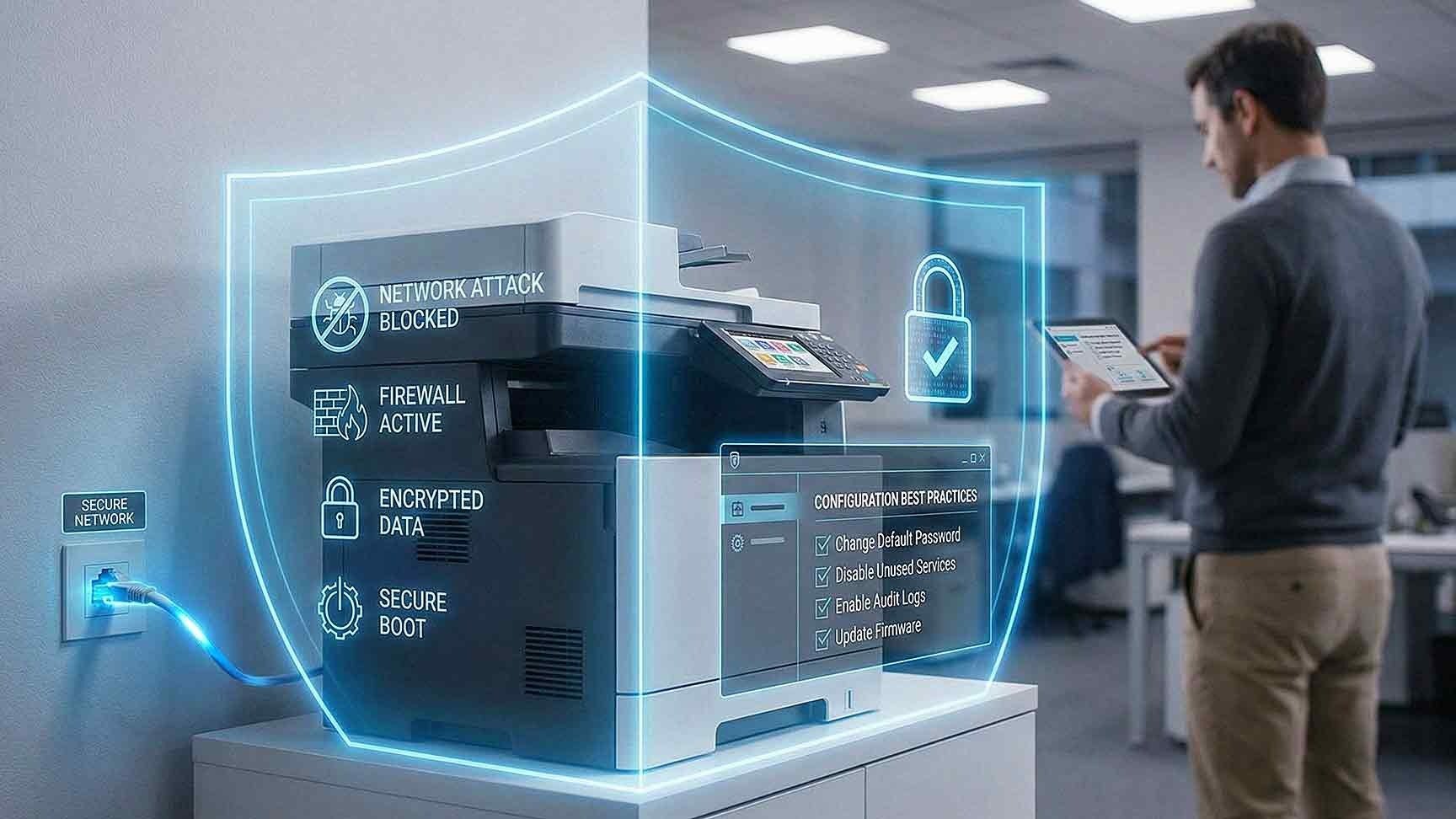
Multifunction printers, or MFPs, are no longer simple output devices.
They scan, email, store documents, connect to cloud platforms, and sit directly on your network. Many contain internal hard drives and embedded operating systems.
From a cybersecurity perspective, they are endpoints.
When businesses overlook MFP network security, they create an entry point for attackers.
Securing multifunction printers must be part of your broader IT security strategy.
Understanding the Security Risks of MFPs
Before you can secure multifunction printers, you need to understand the risks.
Common multifunction printer security risks include:
• Default administrative credentials
• Open network ports
• Unencrypted stored data
• Outdated firmware
• Insecure remote access
• Weak authentication controls
• Lack of monitoring
Each of these gaps increases exposure to printer network attacks.

Step 1: Change Default Credentials Immediately
Many MFPs ship with default usernames and passwords.
If not changed, attackers can gain:
• Administrative access
• Configuration control
• Access to stored documents
• Visibility into network settings
Strong password policies are the first line of defense.
Best practices include:
• Complex passwords
• Unique credentials per device
• Role-based access control
• Removal of shared generic logins
Authentication is foundational to MFP cybersecurity.
Step 2: Enable Full Disk Encryption
Many multifunction printers store images of scanned or printed documents.
Without encryption, data remains accessible if the device is compromised or removed.
To secure multifunction printers:
• Enable full disk encryption
• Encrypt stored scan data
• Verify encryption is active
• Request documentation from your vendor
Encryption protects sensitive information even if the hardware is physically accessed.
Step 3: Keep Firmware Updated
Outdated firmware is a major vulnerability.
Firmware updates address:
• Known security flaws
• Authentication weaknesses
• Encryption protocol improvements
• Network communication bugs
According to the National Institute of Standards and Technology, patch management is critical for all network-connected devices.
MFPs should follow the same update schedule as servers and firewalls.
Routine firmware review significantly reduces printer network attack risk.
Step 4: Disable Unnecessary Services and Ports
Many MFPs enable services by default that your organization may not use.
These can include:
• FTP
• Telnet
• Unsecured web interfaces
• Legacy protocols
• Unused scan features
Each open service expands the attack surface.
To improve MFP network security:
• Disable unused protocols
• Close unnecessary ports
• Restrict remote management access
• Enforce secure communication protocols such as HTTPS
Limiting exposure reduces vulnerability.
Step 5: Segment Printers on a Dedicated VLAN
Network segmentation is one of the most effective protections.
Place MFPs on a dedicated VLAN separate from:
• Core servers
• Financial systems
• HR databases
• Customer data platforms
Configure firewall rules to limit communication between printer VLANs and critical systems.
If an MFP becomes compromised, segmentation prevents attackers from moving laterally across the network.
This containment strategy is essential for managed print security.
Step 6: Implement Secure Print Release
Physical document exposure is often overlooked.
Secure print release requires users to authenticate at the device before printing.
Authentication methods may include:
• PIN codes
• Badge access
• Mobile authentication
• Network login credentials
Secure release prevents sensitive documents from sitting unattended in output trays.
This reduces both internal and external risk.
Step 7: Secure Scan-to-Email and Cloud Integrations
Scan-to-email and cloud features introduce additional exposure.
To secure these functions:
• Use encrypted email protocols
• Require authenticated user logins
• Restrict external forwarding
• Monitor cloud access permissions
• Disable unused integrations
Misconfigured scan features may transmit sensitive information without proper protection.
Every integration should be reviewed during your MFP cybersecurity assessment.
Step 8: Enable Logging and Monitoring
Monitoring detects unusual activity before damage spreads.
Enable logging for:
• Administrative access attempts
• Firmware updates
• Configuration changes
• Repeated authentication failures
• Abnormal print volume
Centralized log collection improves visibility.
Monitoring MFP activity aligns with broader security operations.
Step 9: Control Physical Access
Physical access remains a risk.
Ensure:
• MFPs are placed in monitored areas
• Server room devices are restricted
• Hard drive removal requires authorization
• End-of-life devices follow documented wipe procedures
If devices are leased, confirm data destruction policies at contract end.
Physical oversight complements network protection.
Step 10: Establish a Printer Security Policy
Technology controls are only part of the solution.
A structured security policy should define:
• Who manages printer configuration
• Firmware update schedules
• Authentication requirements
• Data retention procedures
• Device retirement protocols
Without a policy structure, controls become inconsistent.
Printer security should be included in formal IT governance documentation.
Common Signs Your MFPs Are Vulnerable
You may have unmanaged multifunction printer security risks if:
• Default passwords remain active
• Firmware has not been updated in years
• Devices share the same VLAN as critical servers
• No logging is enabled
• Secure print release is not used
• Device retirement is undocumented
These indicators suggest increased exposure to network attacks.
How Managed Print Security Reduces Risk
Managed print security programs provide structured oversight.
This often includes:
• Security configuration audits
• Firmware lifecycle management
• VLAN implementation guidance
• Access control enforcement
• Ongoing monitoring
• End-of-life device handling
AIS supports businesses across Las Vegas and Southern California with managed print security solutions that integrate MFP cybersecurity into overall IT security frameworks.
Printers should not operate outside managed oversight.

What a Secure MFP Environment Should Feel Like
In a properly secured environment:
• Administrative access is restricted
• Firmware is current
• Data is encrypted
• Network segmentation is active
• Logging provides visibility
• Secure print release is standard
Multifunction printers operate as protected endpoints, not hidden vulnerabilities.
Next Steps: Evaluate Your Multifunction Printer Security
If you are unsure whether your devices are protected from network attacks, AIS offers a Multifunction Printer Security Assessment. This evaluation reviews configuration, firmware status, encryption settings, network placement, and authentication controls.
Identifying gaps today prevents incidents tomorrow.
