

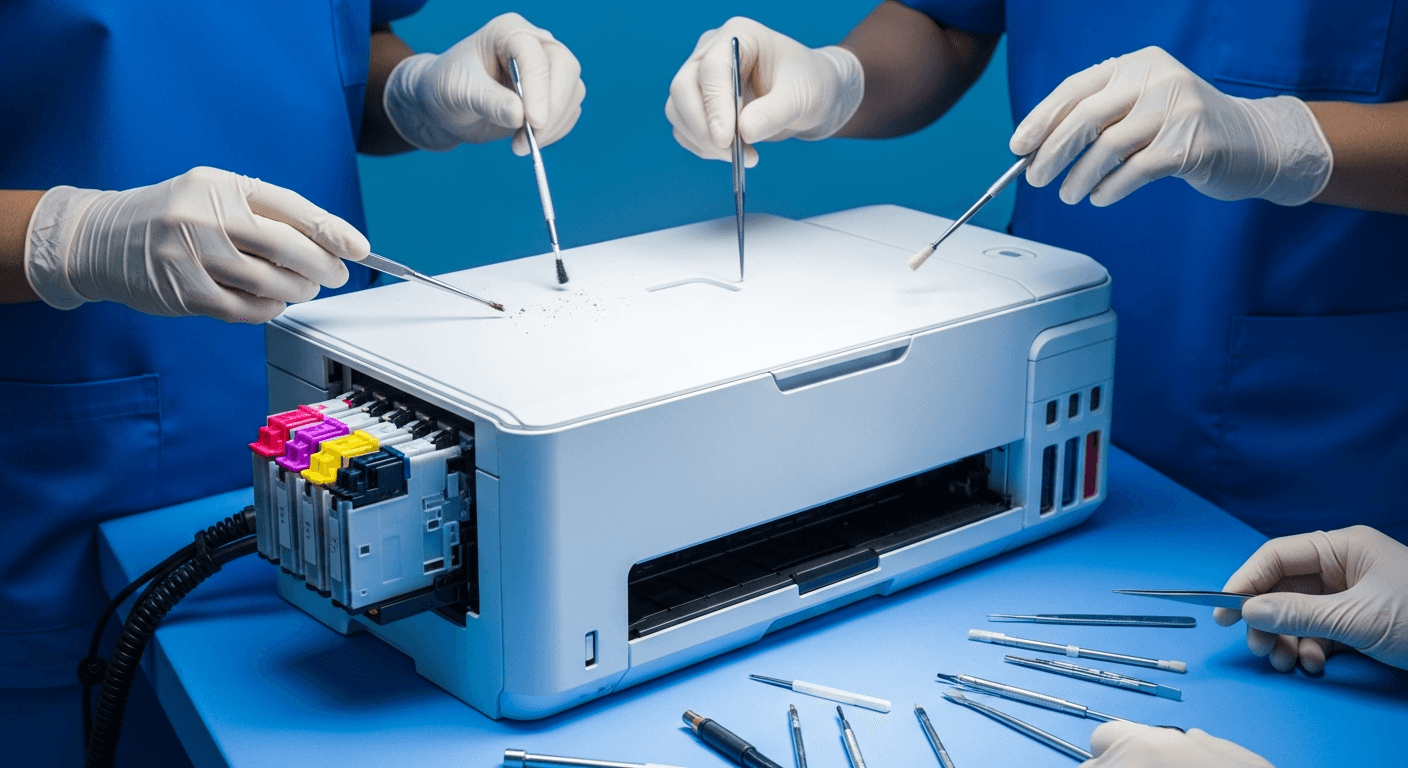
Why does preventative maintenance matter for office printers?
Preventative maintenance reduces printer downtime, lowers repair costs, and extends device lifespan beyond the typical 3 to 7 year range. Most printer failures — including paper jams, streaking, and toner smears — are caused by issues that develop gradually and are entirely preventable with consistent upkeep. Offices that treat printers as managed assets rather than passive equipment report fewer service calls and more predictable operating costs.
The financial case is straightforward. A single emergency repair visit can cost $150 to $300 or more depending on the component involved. Replacing a mid-range office laser printer runs $400 to $1,200. Routine maintenance by comparison typically costs a fraction of either figure when handled through a managed print service agreement or internal schedule.
Deferred maintenance also creates compounding problems. A dirty paper feed roller that causes occasional jams can eventually wear out the pickup mechanism entirely, turning a $20 cleaning task into a $200 parts replacement.
How often should office printers be cleaned and serviced?
Most office printers benefit from a light cleaning every one to three months, with deeper maintenance performed every six months to one year depending on print volume. High-volume environments — such as legal offices, healthcare facilities, or accounting departments printing thousands of pages per month — should clean more frequently and schedule professional inspections at least twice per year.
Recommended maintenance frequency by print volume:
- Low volume (under 500 pages/month): Clean every 90 days, professional inspection annually
- Medium volume (500 to 2,000 pages/month): Clean every 30 to 60 days, professional inspection every six months
- High volume (over 2,000 pages/month): Clean monthly, professional inspection quarterly
These intervals apply to standard laser and inkjet office printers. Multifunction copiers with additional scanning and faxing components may require more frequent attention due to added mechanical complexity.
What are the essential steps for cleaning an office printer?
Cleaning an office printer involves four main areas: the exterior housing, paper feed rollers, glass scanning surfaces, and internal dust-prone components. Each area requires different tools and different levels of care.
Step-by-step office printer cleaning process:
1. Power off and unplug the printer before any internal cleaning
2. Wipe the exterior with a dry or slightly damp lint-free cloth to remove dust buildup on vents and panels
3. Clean paper feed rollers using a lint-free cloth lightly moistened with isopropyl alcohol (90% or higher); rotate the rollers manually while wiping
4. Clean the scanner glass and document feeder glass on multifunction devices using a dry lint-free cloth or approved glass cleaner
5. Remove and gently shake toner cartridges (laser printers only) to redistribute remaining toner evenly before reinstalling
6. Use compressed air to clear dust from paper trays, input areas, and visible internal cavities — always blow outward, not deeper into the machine
7. Wipe the output tray and paper path access panels where dust and paper debris accumulate
Avoid using standard paper towels, which leave fibers. Do not spray any liquid directly into the printer interior.
Which printer parts require regular inspection or replacement?
Several specific components degrade over time regardless of how well a printer is cleaned. Knowing which parts to monitor helps you catch wear before it causes a failure.
Key printer components and their typical replacement intervals:
- Paper feed rollers and pickup rollers: These rubber rollers grip and move paper through the machine. They wear smooth with use, causing jams and misfeeds. Typical replacement interval is every 50,000 to 100,000 pages or every two to three years.
- Fuser unit: The fuser applies heat to bond toner to paper. It is one of the highest-wear components in a laser printer. Most fusers are rated for 100,000 to 200,000 pages.
- Drum unit: Separate from the toner cartridge in many laser printers, the drum unit transfers the toner image onto paper. Replacement is typically needed every 12,000 to 30,000 pages depending on the model.
- Separation pad: This small pad prevents multiple sheets from feeding at once. It wears down over time and is a frequent cause of multi-page jams. Replacement cost is typically low — under $20 for most models.
- Printhead (inkjet printers): Inkjet printheads can clog if the printer sits unused for extended periods. Built-in cleaning cycles help, but physical replacement may be needed eventually.
- Transfer belt (color laser printers): Transfers the toner image from the drum to the paper. Typical lifespan is 100,000 to 150,000 pages.
Most printer manufacturers publish page-yield ratings for these components in the device's user manual or on the manufacturer's support website. Tracking page counts through the printer's built-in status page helps anticipate when replacements are due.

How can businesses prevent paper jams?
Paper jams are the most frequently reported printer problem across all makes and models, and the majority are caused by preventable conditions: worn rollers, overfilled trays, incorrect paper size settings, and moisture-damaged paper stock.
Practical steps to prevent paper jams:
- Store paper properly. Paper should be kept in a cool, dry environment — ideally in sealed reams until needed. Moisture causes paper to absorb humidity, making sheets wavy and prone to jamming. The ideal storage environment is between 68 and 76 degrees Fahrenheit at 35% to 55% relative humidity.
- Do not overfill paper trays. Most paper trays have a maximum fill line. Exceeding it increases friction between sheets and causes multi-page feeds.
- Fan paper before loading. Fanning a stack of paper before placing it in the tray separates sheets and reduces static cling between pages.
- Use the correct paper type and weight. Every printer has a specified paper weight range, typically 20 lb to 28 lb bond for standard office use. Heavier cardstock or specialty media should only be used if the printer is rated for it.
- Inspect and clean rollers regularly. Rollers that feel smooth or glazed rather than slightly tacky have lost their grip. Cleaning with isopropyl alcohol restores grip temporarily; replacement is the long-term fix.
- Clear the paper path completely after a jam. Torn paper fragments left inside the machine are a leading cause of the next jam.
How does the office environment affect printer performance?
Environmental conditions directly affect how a printer performs and how quickly components wear out. This is a gap in most printer maintenance guidance, but it has measurable impact.
Temperature and humidity are the most significant environmental factors. Printers operating in high-humidity environments experience more frequent paper jams because paper absorbs moisture from the air. In low-humidity environments, static electricity builds up more easily, causing paper sheets to stick together.
Dust levels matter considerably. Office environments with high foot traffic, carpeting, or nearby construction accumulate dust faster. Dust that enters the printer settles on rollers, sensors, and internal optics, causing misfeeds, streaking, and sensor errors.
Direct sunlight and heat sources degrade toner and inkjet cartridges. Printers placed near windows or heating vents should be relocated or shielded to avoid temperature fluctuations that affect print quality.
Ventilation clearance is often overlooked. Most printer manufacturers require a minimum of four to six inches of clearance around all sides of the device for heat dissipation. Enclosing a printer in a cabinet without airflow causes internal temperatures to rise, shortening fuser and motor lifespan.
Does using third-party toner or ink cartridges affect printer performance?
Third-party cartridges can affect print quality, increase maintenance frequency, and in some cases void printer warranties. The degree of impact depends on cartridge quality and printer model.
Genuine OEM (original equipment manufacturer) cartridges are engineered to the exact specifications of the printer's components. Third-party cartridges vary widely in quality. Lower-quality alternatives may contain toner with incorrect particle size or density, which can leave residue on the drum unit and fuser, requiring more frequent cleaning and potentially shortening component lifespan.
Specific documented risks of low-quality third-party cartridges include:
- Toner scatter inside the machine, requiring more frequent internal cleaning
- Drum damage from abrasive or incorrectly formulated toner
- Fuser contamination from toner that does not melt at the correct temperature
- Voided manufacturer warranty — most OEM warranties explicitly state that damage caused by non-genuine supplies is not covered
This does not mean all third-party cartridges are problematic. Reputable remanufactured cartridges that meet ISO 19752 (monochrome toner) or ISO 19798 (color toner) standards generally perform acceptably. Purchasing from unknown or unverified sources carries higher risk.
Why are firmware updates part of printer maintenance?
Firmware updates address security vulnerabilities, fix known bugs, and sometimes improve print quality or paper handling behavior. Network-connected printers that run outdated firmware present an active security risk.
Office printers connected to a company network have an IP address and in many cases store document data in onboard memory. The Cybersecurity and Infrastructure Security Agency (CISA) has identified networked printers as a common entry point for unauthorized network access when firmware is not kept current.
How to stay current on firmware:
- Check the printer manufacturer's support page for your specific model number at least twice per year
- Enable automatic firmware update notifications if the printer's software supports it
- For managed print environments, firmware updates are typically handled as part of the service agreement
Firmware updates are free from the manufacturer and take five to fifteen minutes to apply. They should be treated as a routine maintenance task, not an optional one.
What is the cost of neglecting printer maintenance compared to maintaining a schedule?
Neglecting printer maintenance consistently costs more than maintaining a schedule, both in direct repair expenses and in productivity loss from downtime.
Estimated cost comparison:
| Maintenance Approach | Annual Cost (Medium-Volume Printer) |
|---|---|
| Routine preventative maintenance | $100 to $300 (supplies, time, or service contract) |
| Reactive repair — single service call | $150 to $300 per visit |
| Early device replacement from neglect | $400 to $1,200 per printer |
| Lost productivity per hour of downtime | $50 to $150+ depending on team size |
A printer that fails twice per year due to deferred maintenance costs more in service calls alone than an annual maintenance agreement. When factoring in employee time lost waiting for a functioning printer, the gap widens further.
Businesses managing multiple printers across a single location can reduce per-unit maintenance costs by bundling devices under a managed print services agreement, which typically includes scheduled maintenance, toner replenishment, and priority service response.
What maintenance tasks can employees handle versus what requires a technician?
Employees can safely handle exterior cleaning, paper tray management, cartridge replacement, and basic jam clearing. Tasks involving internal components, fuser units, drum replacement, or firmware updates on networked devices are better handled by a qualified technician.
Employee-safe tasks:
- Wiping exterior surfaces
- Cleaning scanner glass
- Replacing toner or ink cartridges
- Loading and managing paper
- Clearing paper jams through designated access panels
- Running built-in cleaning cycles from the printer menu
Technician-recommended tasks:
- Roller replacement
- Fuser unit replacement
- Drum unit replacement
- Internal deep cleaning beyond visible access panels
- Firmware updates on networked or fleet-managed devices
- Diagnosing recurring error codes
Attempting internal component replacement without proper training risks damaging surrounding parts or creating new failure points. For offices managing a fleet of printers and copiers, scheduled technician visits through a copier and printer service plan reduce the risk of employee-caused damage and ensure components are inspected on a consistent schedule.

Summary of Recommended Maintenance Actions by Frequency
Monthly:
- Wipe exterior surfaces and vents
- Clean paper trays and remove debris
- Inspect paper supply for moisture damage
- Run built-in cleaning cycle (inkjet printers)
Every 1 to 3 months:
- Clean feed rollers with isopropyl alcohol
- Clean scanner glass on multifunction devices
- Check paper tray fill levels and adjust habits if overfilling is common
Every 6 months:
- Inspect rollers for visible wear
- Check firmware version and update if needed
- Review page count against component replacement thresholds
- Verify environmental placement (clearance, temperature, direct light exposure)
Annually:
- Professional inspection and internal cleaning
- Replace separation pads or rollers if wear is detected
- Assess whether print volume has changed and whether the current device is appropriately rated for current usage
Consistent adherence to this schedule is the single most effective way to reduce printer-related disruptions in an office environment.
Topics:
