

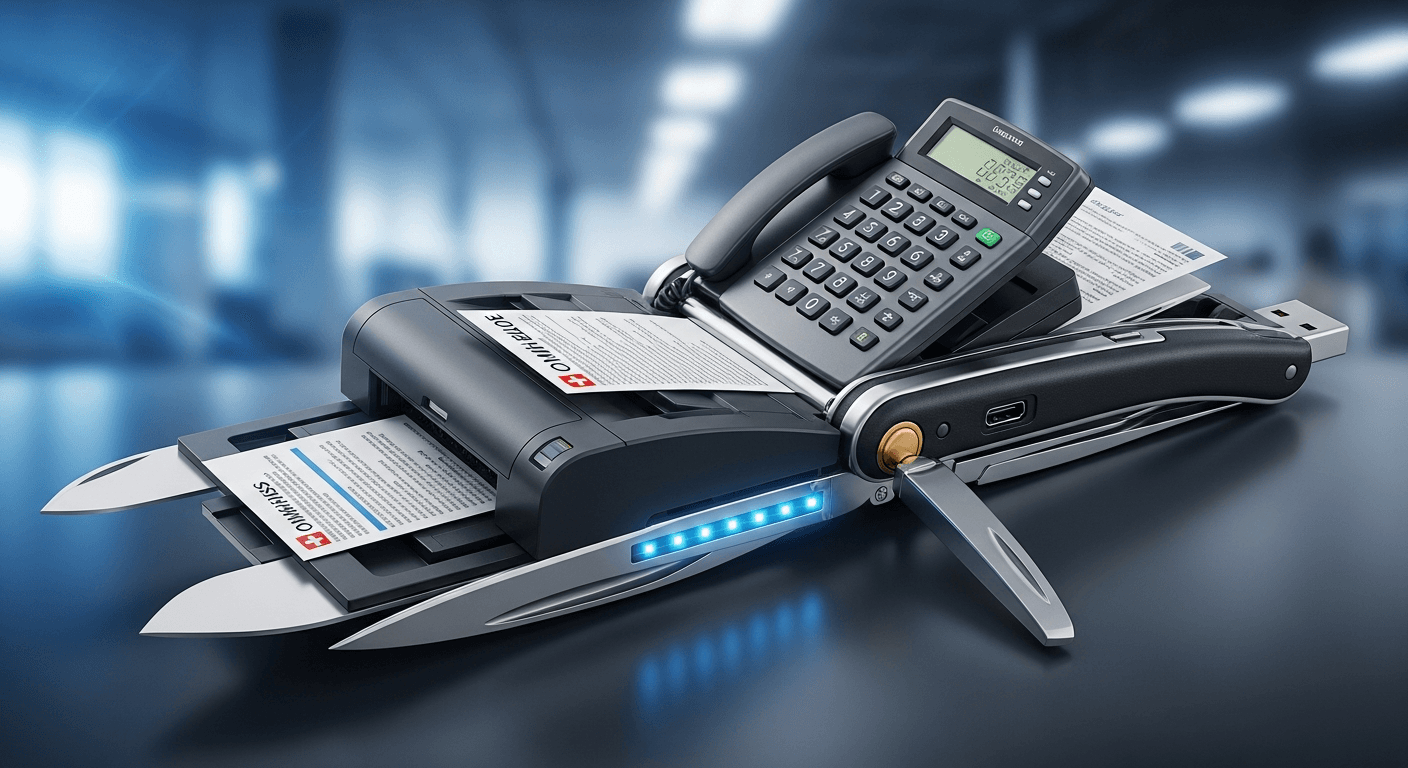
What Is a Multi-Function Printer and What Does It Actually Do?
A multi-function printer (MFP) is a single device that combines printing, scanning, copying, and faxing into one unit. Modern MFPs also connect to cloud storage platforms, integrate with document management software, and include security features such as user authentication and encrypted hard drives. They replace the need for separate standalone devices and serve as a central hub for document workflow in most office environments.
The terms "copier," "printer," and "MFP" are often used interchangeably because current models perform all of these functions. The key distinction from a standard printer is that an MFP handles input (scanning, receiving faxes) as well as output (printing, copying), making it a two-directional document processing device rather than a simple output machine.
What Are the Advantages of a Multi-Function Printer Over Single-Function Devices?
MFPs reduce equipment costs, save floor space, and consolidate maintenance contracts into a single service agreement. A business running separate printers, scanners, copiers, and fax machines pays for four sets of supplies, four service contracts, and four points of failure. An MFP reduces that to one.
Space savings: A mid-range office MFP typically occupies 3 to 5 square feet of floor space, compared to the combined footprint of four separate devices.
Supply consolidation: One toner or ink system covers all functions, reducing the number of consumables to track and reorder.
Single vendor support: Most MFP leases and service agreements cover all functions under one contract, simplifying IT and facilities management.
Network integration: A single network-connected MFP can serve an entire office floor, whereas standalone printers often require individual connections or USB setups.
Reduced energy consumption: Running one device instead of four lowers overall energy draw. Many current MFPs carry ENERGY STAR certification, meaning they meet EPA standards for energy efficiency in standby and active modes.
How Do I Assess My Office's Printing Needs Before Selecting an MFP?
Start by calculating your current average monthly page volume, then project that number 12 to 18 months forward based on your hiring plan and document output trends. MFP manufacturers publish a recommended monthly page volume (also called the duty cycle) for each model. Selecting a machine rated for your projected volume — not your current volume — prevents premature wear and service issues.
Key metrics to gather before shopping:
- Monthly page volume: Total pages printed, copied, and scanned per month across all devices
- Color vs. black-and-white ratio: Color printing costs significantly more per page; knowing your ratio helps you decide whether a color MFP is justified
- Paper sizes used: Standard letter (8.5 x 11), legal (8.5 x 14), tabloid (11 x 17), and envelope sizes each require specific paper tray configurations
- Scan destination requirements: Do users scan to email, a shared network folder, cloud storage, or a document management system?
- Number of users: MFPs have a rated capacity for concurrent users; exceeding that capacity causes print queue delays
A common benchmark: offices printing fewer than 2,000 pages per month can typically operate with a desktop or small workgroup MFP. Offices printing 2,000 to 10,000 pages per month generally need a mid-range workgroup device. High-volume environments above 10,000 pages per month require production-class equipment with larger paper capacities and faster print engines.
What Features Should I Prioritize in an MFP for a Growing Business?
For a growing office, the features that matter most are print speed, paper capacity, network connectivity, cloud integration, and scalability. Secondary features like finishing options (stapling, hole punching) and dual-sided printing defaults matter for cost control and workflow efficiency.
Print speed: Measured in pages per minute (ppm). Small office MFPs typically print 20 to 35 ppm. Mid-range workgroup models run 40 to 65 ppm. High-volume devices exceed 65 ppm. A slow machine creates bottlenecks as headcount grows.
Paper capacity: Entry-level MFPs hold 250 to 500 sheets. Mid-range models hold 500 to 2,000 sheets with optional additional trays. High-capacity models can hold 3,000 or more sheets. Frequent paper reloading is one of the most common complaints in offices that underspecify paper capacity.
Automatic document feeder (ADF): A duplex ADF scans both sides of a document in a single pass. This feature is standard on most mid-range and above MFPs and significantly reduces scan time for multi-page documents.
Mobile and wireless printing: Most current MFPs support Wi-Fi, Wi-Fi Direct, Apple AirPrint, Mopria (Android), and vendor-specific mobile apps. In hybrid work environments where employees move between desks or work from multiple locations, wireless printing capability is a baseline expectation, not a premium add-on.
Cloud connectivity: MFPs that integrate directly with Google Drive, Microsoft OneDrive, SharePoint, Dropbox, and similar platforms allow users to scan directly to cloud folders without routing through a PC. This reduces steps in document workflows and supports remote access.
Scalability: Look for models that accept optional paper trays, finishing units, and expanded memory as add-on purchases. Buying a base model with upgrade paths is more cost-effective than replacing the entire machine when needs change.

How Can I Ensure the Security of Sensitive Documents When Using an MFP?
MFP security requires a combination of device-level controls, network-level controls, and user behavior policies. At the device level, look for hard drive encryption, automatic hard drive overwrite after each job, and the ability to physically remove or wipe the hard drive before decommissioning the machine.
Critical MFP security features to verify:
- User authentication: PIN codes, swipe cards, or biometric readers prevent unauthorized users from accessing the device or retrieving documents left in output trays
- Secure print (pull printing): Jobs are held in a queue and only released when the user authenticates at the machine, eliminating uncollected documents in the output tray
- Data encryption: The IEEE 2600 standard and ISO 15408 (Common Criteria) certifications indicate that a device meets established security benchmarks for hard drive and network data protection
- Network port control: Disabling unused network ports and protocols (such as FTP or Telnet) reduces the attack surface of a networked MFP
- Audit logs: Devices that log all print, copy, scan, and fax activity by user provide an audit trail for compliance requirements in regulated industries such as healthcare (HIPAA) and finance
MFPs connected to a corporate network are endpoints, the same as laptops and servers, and should be included in your organization's overall IT security policy. Businesses that use managed IT services can include MFP security monitoring within their broader endpoint management framework.
How Does an MFP Integrate with Existing Office Software and Workflows?
MFP integration with office software depends on available connectors, drivers, and the device's embedded software platform. Most business-class MFPs support integration with Microsoft 365, Google Workspace, and major document management systems through pre-built connectors or open APIs.
Common integration points:
- Microsoft SharePoint and OneDrive: Direct scan-to-SharePoint workflows allow users to scan documents into specific folders or document libraries without opening a PC application
- Document management systems (DMS): Platforms such as DocuWare, M-Files, and OpenText offer certified connectors for major MFP brands, enabling automated indexing of scanned documents
- ERP and accounting software: Some MFPs support direct integration with platforms like QuickBooks or SAP for invoice scanning workflows
- Email servers: SMTP configuration allows MFPs to send scanned documents directly from the device's address book without routing through a workstation
Integration capability is one of the most frequently overlooked factors in MFP selection. A device that cannot connect to your existing business applications creates manual workarounds that reduce the productivity gains the MFP was purchased to deliver.
Before finalizing any MFP purchase or lease, provide your vendor with a list of the software platforms your office currently uses and confirm certified integration support for each one.
What Are the Long-Term Costs Associated with Operating an MFP?
The purchase or lease price of an MFP represents a fraction of its total cost of ownership (TCO) over a typical 3 to 5 year contract period. Ongoing costs include toner or ink, paper, maintenance, and service calls.
Cost components to calculate:
- Cost per page (CPP): The standard metric for ongoing supply costs. Black-and-white laser printing typically runs $0.01 to $0.03 per page. Color laser printing typically runs $0.06 to $0.15 per page depending on toner yield and coverage. Inkjet MFPs vary widely.
- Service and maintenance agreements: Most businesses lease MFPs under a managed print services (MPS) or cost-per-copy (CPC) agreement that bundles toner, parts, and labor into a flat per-page rate. This converts unpredictable repair costs into a fixed monthly expense.
- Paper: A ream of 500 sheets of standard 20 lb bond paper costs approximately $5 to $10. An office printing 5,000 pages per month uses roughly 10 reams per month, or $600 to $1,200 per year in paper alone.
- Energy: ENERGY STAR-certified MFPs use an average of 1 to 3 kilowatts during active printing and as little as 1 to 5 watts in sleep mode. Annual energy costs for a typical office MFP range from $20 to $80 depending on usage patterns and local electricity rates.
- End-of-lease hard drive disposal: When a leased MFP is returned, the hard drive contains stored document images. Businesses handling sensitive data should confirm whether the vendor wipes the drive or whether the lease agreement allows for drive retention or destruction.
Businesses managing multiple devices across locations benefit from managed print services programs that provide usage reporting, automatic supply replenishment, and proactive service dispatch — all of which reduce the administrative overhead of managing print infrastructure internally.

What Training and Support Should I Expect When Deploying an MFP?
Most business-class MFP vendors provide on-site installation, network configuration, and basic user training as part of the initial deployment. The scope of training and ongoing support varies significantly between vendors and should be clarified in writing before signing any agreement.
What to confirm with your vendor:
- Installation scope: Does the vendor configure network settings, user authentication, and cloud integrations, or only deliver and connect the machine?
- User training: Is group or individual training included? Is it on-site or remote? Is refresher training available if staff turnover occurs?
- Help desk access: What is the response time for technical support calls? Is support available by phone, email, and on-site dispatch?
- Service response SLA: Most managed print agreements specify a response time for service calls, typically 4 to 8 business hours for on-site repairs. Verify whether that SLA applies to your specific location.
- Firmware and software updates: Confirm whether the vendor pushes security patches and firmware updates as part of the service agreement or whether updates are the customer's responsibility.
Staff who are not trained on basic MFP functions — scan routing, secure print release, paper jam recovery, supply replacement — generate disproportionate help desk tickets and slow productivity. Allocating time for structured training at deployment reduces support costs throughout the contract term.
What Questions Should I Ask a Vendor Before Committing to an MFP?
Before signing a lease or purchase agreement, ask your vendor these specific questions:
1. What is the recommended monthly duty cycle for this model, and how does it compare to our projected volume?
2. What is the cost per page for black-and-white and color under the service agreement?
3. Which software platforms does this device have certified integrations with?
4. What security certifications does this device carry (ISO 15408, IEEE 2600, FIPS 140-2)?
5. What is the on-site service response time SLA for our location?
6. What happens to the hard drive at end of lease?
7. What upgrade paths (additional paper trays, finishing units, memory) are available for this model?
8. Is user training included, and how is it delivered?
Getting written answers to these questions before committing protects your business from unexpected costs and capability gaps that become apparent only after the device is installed.
Businesses in Las Vegas and Southern California evaluating copiers and printers for growing offices can request an assessment of their current print environment to identify volume thresholds, integration requirements, and cost-per-page benchmarks before selecting a device.
Topics:
