

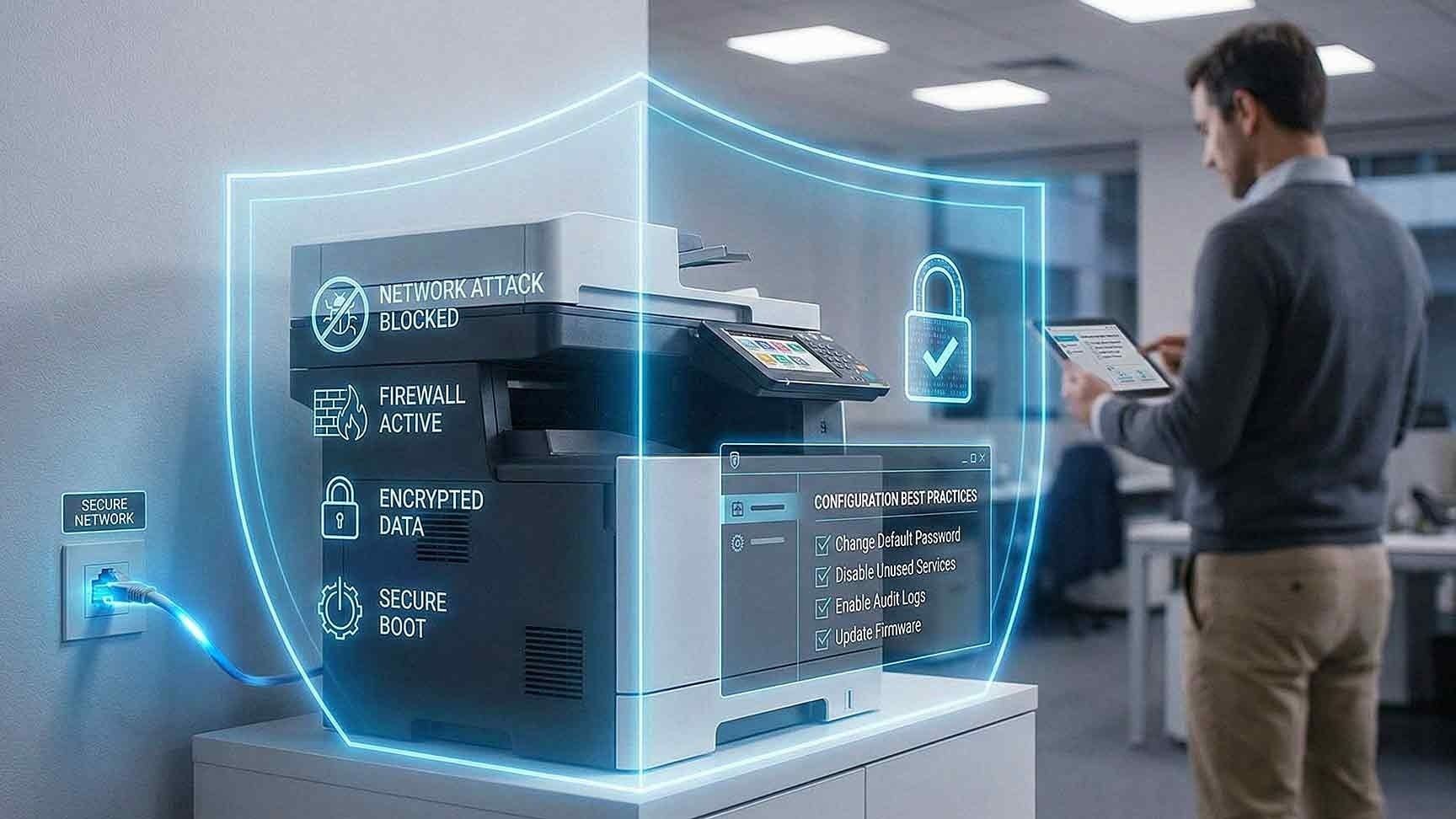
Multifunction printers, or MFPs, are no longer simple output devices. They scan, email, store documents, connect to cloud platforms, and sit directly on your network. Many contain internal hard drives and embedded operating systems. From a cybersecurity perspective, they are endpoints — the same category as your servers, laptops, and firewalls.
When businesses overlook MFP network security, they create a door that attackers are increasingly walking through. According to the 2025 Verizon Data Breach Investigations Report, exploitation of network edge vulnerabilities surged nearly eightfold year over year. MFPs, as always-on edge devices connected to your network, fall squarely in that threat category.
Securing multifunction printers has to be part of your broader IT security strategy. This guide walks you through exactly how to do that — step by step, without the technical jargon.
Why MFPs Are a Target in 2026
Most organizations have tightened security around their servers, endpoints, and email systems. Attackers know this. They are actively looking for the overlooked devices — the ones that rarely get patched, rarely get audited, and often run with factory-default settings for years.
MFPs check every one of those boxes.
A modern MFP can store thousands of scanned document images, hold user credentials, connect to cloud storage platforms, and communicate outbound over email — all from a device that most employees think of as "just the printer." That combination of capability and neglect makes MFPs a high-value, low-effort target.
The good news: the same structured approach you apply to servers and workstations works here too. You just have to apply it.
Understanding the Security Risks of MFPs
Before you can secure multifunction printers, you need to understand what makes them vulnerable in the first place. Common MFP security risks include:
- Default administrative credentials that are publicly known and rarely changed
- Open network ports that expand your attack surface
- Unencrypted stored data on internal hard drives
- Outdated firmware with unpatched security flaws
- Insecure remote access configurations
- Weak or missing authentication controls at the device
- Lack of monitoring — MFPs often generate no security logs or alerts
Each of these gaps independently increases your exposure. Combined, they create a serious risk profile that deserves the same attention you give to any networked endpoint.

Step 1: Change Default Credentials Immediately
Many MFPs ship with default usernames and passwords that are published in vendor documentation — and catalogued on attacker forums. If your team hasn't changed them, you are running an unlocked device on your network.
With default credentials, an attacker can gain:
- Full administrative access to the device
- Control over configuration settings
- Access to stored documents and scan history
- Visibility into your network communication settings
Best practices for MFP credential management:
- Use complex, unique passwords per device
- Implement role-based access control so users only have the access they need
- Remove shared or generic logins
- Document credentials in a secure password manager, not a sticky note on the printer
Authentication is foundational. It is the first step — and skipping it makes every other security measure less effective.
Step 2: Enable Full Disk Encryption
Many multifunction printers store images of scanned and printed documents on internal drives. Without encryption, that data is accessible if the device is compromised remotely or physically removed from your office.
This is not a theoretical risk. Hard drives pulled from decommissioned MFPs have been found to contain thousands of sensitive documents — tax forms, HR records, legal contracts.
To secure stored data:
- Enable full disk encryption on every MFP
- Encrypt scan data at rest
- Verify encryption is active (don't assume it is — confirm it in the admin panel)
- Ask your vendor for documentation confirming encryption is enabled
For organizations in regulated industries, look for devices validated under FIPS 140-3, the federal standard for cryptographic security. As of August 2024, Canon MFP security chips have received FIPS 140-3 validation — a meaningful benchmark when evaluating devices for sensitive environments.
Step 3: Keep Firmware Updated
Outdated firmware is one of the most exploited vulnerabilities across all network-connected devices, and MFPs are no exception.
Firmware updates address:
- Known security flaws and zero-day patches
- Authentication weaknesses
- Encryption protocol improvements
- Network communication bugs
The National Institute of Standards and Technology (NIST) has long emphasized patch management as a foundational control for all networked devices. Your MFPs should follow the same update cadence as your servers and firewalls — not an annual check-in, but a scheduled, documented process.
Practical steps:
- Subscribe to firmware update notifications from your printer vendor
- Assign a team member or managed IT provider responsibility for MFP patching
- Test firmware updates in a staging environment when possible
- Log all updates for compliance documentation
If your fleet includes devices from Xerox, Kyocera, or HP, each manufacturer provides firmware update portals and security bulletins you should be actively monitoring.
Step 4: Disable Unnecessary Services and Ports
Many MFPs enable a wide range of services by default — services your organization may never use. Every enabled service is a potential entry point.
Common services that are often enabled but rarely needed:
- FTP — a legacy file transfer protocol with no encryption
- Telnet — an outdated remote access protocol
- Unsecured web interfaces running on HTTP instead of HTTPS
- Legacy print protocols no longer needed in modern environments
- Unused scan-to-folder or fax features
To tighten your MFP network security:
- Audit enabled services during initial setup and during regular security reviews
- Disable every protocol and port not actively in use
- Restrict remote management access to specific IP ranges
- Enforce HTTPS for all web-based administration
Reducing your attack surface is one of the most cost-effective security improvements you can make. It requires no additional hardware — just configuration.
Step 5: Segment Printers on a Dedicated VLAN
Network segmentation is one of the highest-impact protections available for MFP security. The concept is straightforward: place your printers on their own network segment — a VLAN — separate from your core business systems.
Keep MFPs isolated from:
- Core servers and infrastructure
- Financial and accounting systems
- HR databases and personnel records
- Customer data platforms
Configure firewall rules to tightly control what traffic can pass between the printer VLAN and other network segments. If a printer is compromised, segmentation contains the damage. Attackers cannot move laterally from the printer to your servers.
This containment strategy is especially important for businesses running managed print environments or housing sensitive client data — which, in industries like healthcare, legal, and financial services, is everyone.
Step 6: Implement Secure Print Release
Physical document exposure is an overlooked but very real risk. Sensitive documents sitting in an output tray can be picked up by anyone who walks by — an employee, a visitor, a vendor.
Secure print release solves this by requiring users to authenticate at the device before their job prints.
Authentication methods include:
- PIN codes entered at the device
- Badge or proximity card access
- Mobile authentication via an app
- Network login credentials
The document stays in the print queue until the right person is standing at the machine. It never sits unattended.
This single feature reduces both internal and external risk — and it is available on most enterprise-grade MFPs from Xerox, Kyocera, and HP.
Step 7 Secure Scan-to-Email and Cloud Integrations
Scan-to-email and cloud integrations are among the most useful MFP features — and among the most frequently misconfigured.
To lock these down:
- Use TLS encryption for all outbound scan-to-email traffic
- Authenticate outbound email through your organization's mail server rather than using open SMTP relays
- Restrict cloud integration access using service accounts with limited permissions
- Audit which users have permission to scan to external destinations
- Log all outbound scan activity
If your MFP connects to platforms like Microsoft 365, Google Workspace, or cloud storage services, treat those integrations with the same scrutiny you apply to any third-party cloud application.
Step 8: Monitor and Audit MFP Activity
Most organizations monitor their servers, firewalls, and endpoints for unusual activity. Far fewer extend that monitoring to their MFPs. This is a gap attackers count on.
What to monitor:
- Failed login attempts at the device
- Configuration changes made outside of business hours
- Unusual scan or print volumes
- Outbound connections to unexpected destinations
- Firmware version changes
Integrate MFP logs into your SIEM or managed security platform where possible. At minimum, enable logging at the device level and review logs during routine security audits.
If you are working with a managed IT or managed print provider, ask specifically whether MFP monitoring is included in your service agreement. If it is not, it should be.
Building MFP Security Into Your Broader IT Strategy
Securing multifunction printers is not a one-time project. It is an ongoing discipline — the same as endpoint management, patch management, or access control.
The most effective approach treats MFPs as what they actually are: networked endpoints that need the same attention, policies, and oversight as any other device on your infrastructure.
For businesses without dedicated IT staff, a managed IT or managed print services provider can handle firmware updates, configuration audits, segmentation, and monitoring as part of a monthly service agreement. This removes the burden from your team while ensuring nothing falls through the cracks.
Frequently Asked Questions About MFP Network Security
Are multifunction printers really a cybersecurity risk?
Yes — and it is a growing one. MFPs are networked devices with internal storage, outbound communication capabilities, and administrative interfaces. The 2025 Verizon Data Breach Investigations Report found that edge device exploitation surged nearly eightfold year over year. Printers that go unpatched and unmonitored are a real and exploitable target.
What is the most common way attackers compromise MFPs?
Default credentials are the most common entry point. Most MFPs ship with publicly documented default usernames and passwords. If your team never changed them, any attacker who finds the device on your network can log in with a quick internet search.

How often should MFP firmware be updated?
You should check for firmware updates at least quarterly, and apply security patches as soon as they are released by your vendor. This is the same standard that applies to servers and workstations. MFPs should not be treated differently just because they print documents.
What is FIPS 140-3, and does my printer need to meet it?
FIPS 140-3 is a federal cryptographic security standard that validates how devices protect data through encryption. If your business operates in a regulated industry — healthcare, government, legal, or financial services — you should prioritize MFPs with FIPS-validated security components. Canon received FIPS 140-3 validation for its MFP security chip in August 2024.
What is secure print release, and do I need it?
Secure print release is a feature that holds print jobs in a queue until the user authenticates at the device. This prevents documents from sitting unattended in output trays. Any organization that prints sensitive documents — invoices, HR records, contracts, patient information — should have this feature enabled.
Can I manage MFP security without a dedicated IT team?
Yes. A managed IT or managed print services provider can handle firmware updates, configuration hardening, monitoring, and audits as part of a recurring service agreement. This is often the most practical and cost-effective approach for small and midsize businesses.
How do I know if my current MFPs are secure?
Start with an audit. Review default credentials, firmware versions, enabled services and ports, encryption settings, and network placement. If you are unsure where to start, AIS offers free consultations to help businesses assess their print environment and identify security gaps.
Ready to Secure Your Print Environment?
If your MFPs haven't been audited, patched, or configured to current security standards, your business has a gap that is worth closing — now, before it becomes an incident.
AIS works with businesses in Las Vegas, Southern California, and surrounding regions to assess, secure, and manage print environments of all sizes. Whether you need a one-time security audit or ongoing managed print services, our team can help.
Schedule a Free Consultation to talk through your current print environment and find out where you stand.
Contact AIS Today if you have questions or want to learn more about our managed print and IT security services.
